
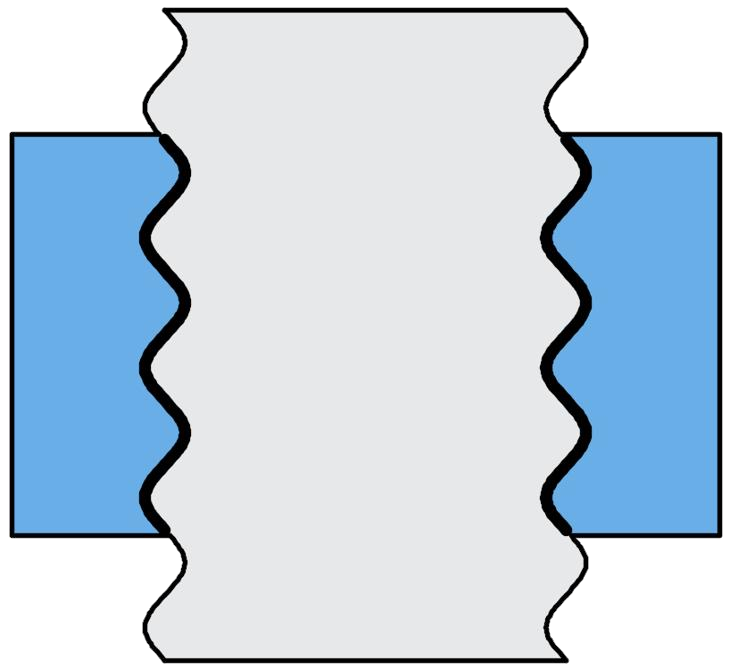


INP finite element model
The nodes and elements of the bolt, nut, and clamped members, used for subsequent finite element analysis.

Define thread and joint dimensions, view assembly, and generate a realistic hexahedral mesh. No installation is required; place the modeling process right in front of you.
Supports M / MJ threads · Recommended to use a computer browser
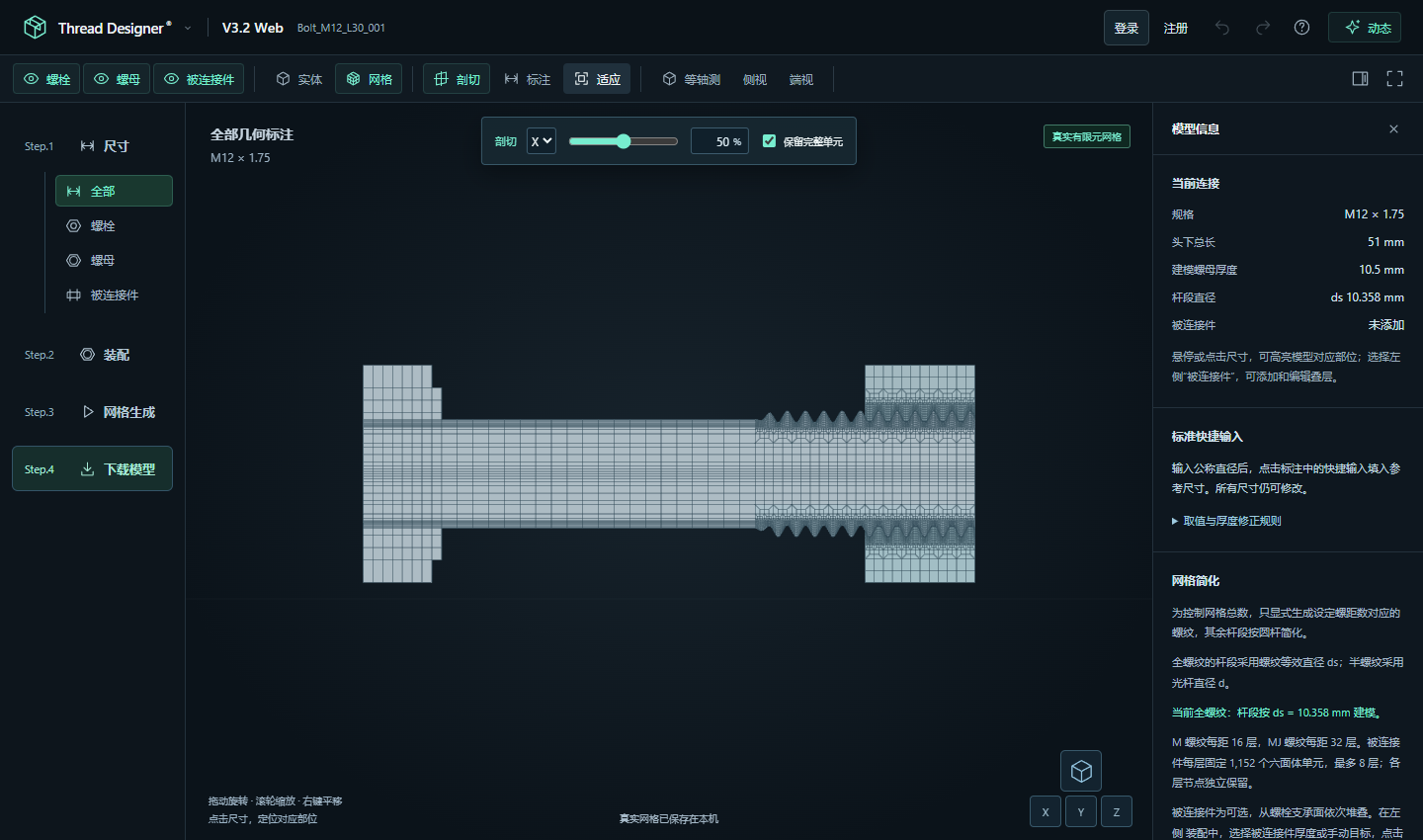
Click on assemble, disassemble, section, and mesh
First understand the model, then enter the workbench to define your own connection.
Supports M, MJ threads and left-hand and right-hand threads. You can choose full thread or half thread. Adjust nominal diameter, pitch, rod length, nut and bolt head dimensions, and preview changes as parameters vary.
M / MJ · Full thread / Half thread · Left-hand / Right-hand thread
Add cylindrical or rectangular clamped members, supporting up to eight layers. Each layer's thickness, shape, and through hole can be set independently, and the assembly relationship of each component is checked based on the nut position.
Layered Dimensions · Independent Through Holes · Assembly Position
After generating a realistic hexahedral mesh, rotate, scale, or switch the view; use sectioning to check internal structures, and switch between solids and meshes. The example page comes from the same Web mesh generator.
Solid / Mesh · Section · Annotation and view
Download the INP model and mesh quality report. Continue setting materials, contact, loads, boundary conditions, and analysis steps in the solver to make the model correspond to actual operating conditions.
INP Model · Mesh Quality Report
From geometric shape to finite element element, before downloading check the assembly and mesh. After downloading, add solving settings for real operating conditions.
Try it in the workbenchThe nodes and elements of the bolt, nut, and clamped members, used for subsequent finite element analysis.
View mesh quality information with the model, as a basis for checking before solving.
No installation is required; open the 3.2 Web Workbench to use it. It is recommended to operate on a computer to view parameters, models, and mesh information simultaneously.
Yes. TD3, TD4 stations and the Web workbench share the same account and personal center. Web permissions are managed separately and do not inherit desktop software licenses.
Guests can generate up to 3 models in total. Signed-in accounts receive 10 generations per month, resetting at 00:00 Beijing time on the 1st. Licensed Web accounts receive 30 per week, resetting at 00:00 each Monday. Only successful generations consume a credit. All supported thread types are available. Check your remaining credits in the upper-right corner of the workbench.
No. The introduction page shows pre-generated local M12 examples. Switching between assembly, disassembly, sectioning, or mesh does not submit generation tasks. Actual modeling should be done in the workbench.
3.1 is a Windows desktop modeling software; 3.2 Web places thread connection modeling into a browser, providing an independent online workflow. 4.0 is an engineering suite preview, showcasing seven professional software packages, currently not available for download.
The exported content includes the finite element model and mesh quality report. You also need to configure materials, contact, loads, boundary conditions, and analysis steps in the solver according to actual operating conditions.
From dimensions, assembly to real mesh, completed in the same workbench.