From parameters
to thread mesh
Thread Designer 3.1
Select a thread profile and define dimensions and mesh settings.
Generate an INP model for finite element analysis.
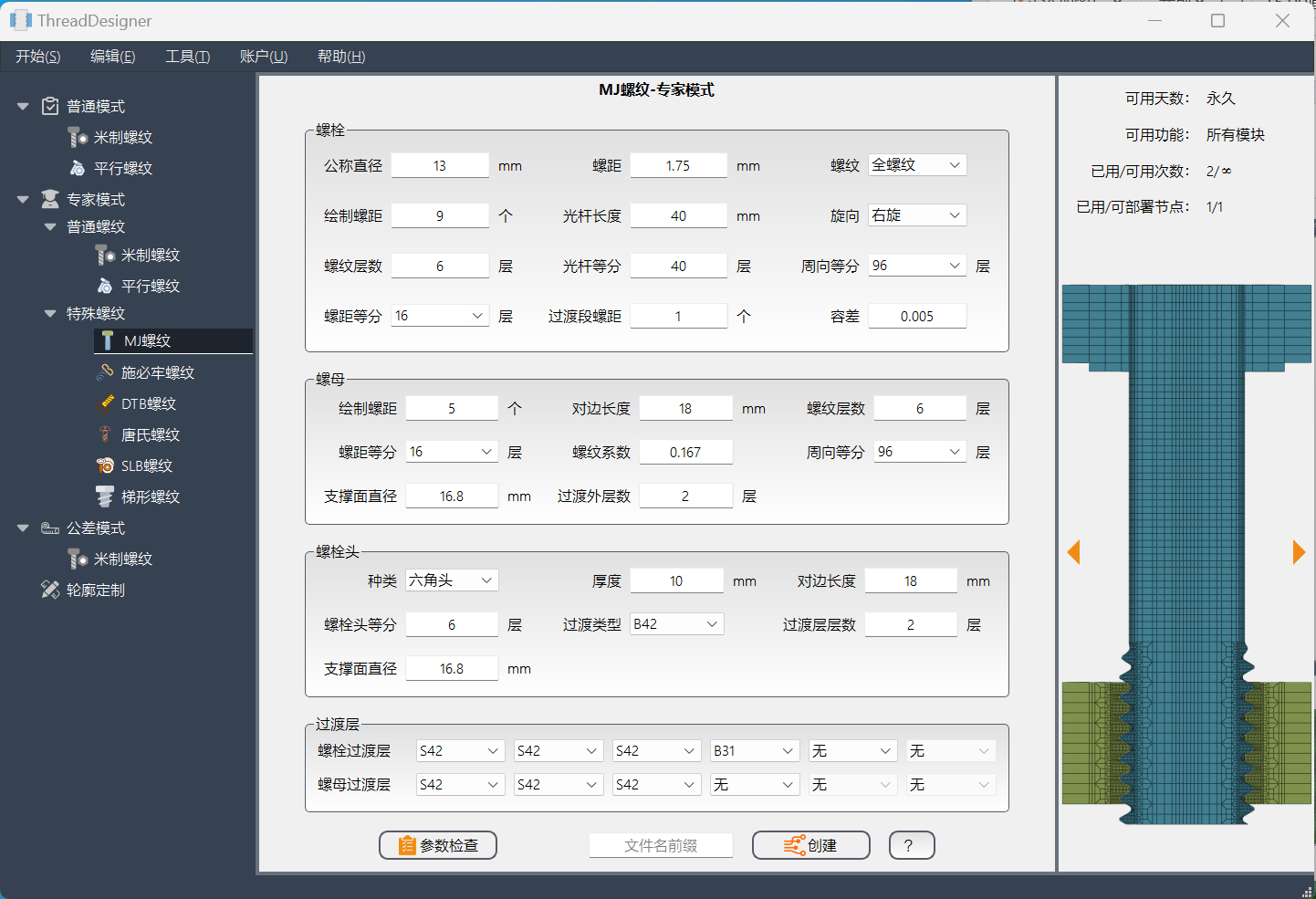
Select a thread profile and define dimensions and mesh settings.
Generate an INP model for finite element analysis.
Edit dimensions on the model and organize parts and connections.
Product overview A new desktop workflow
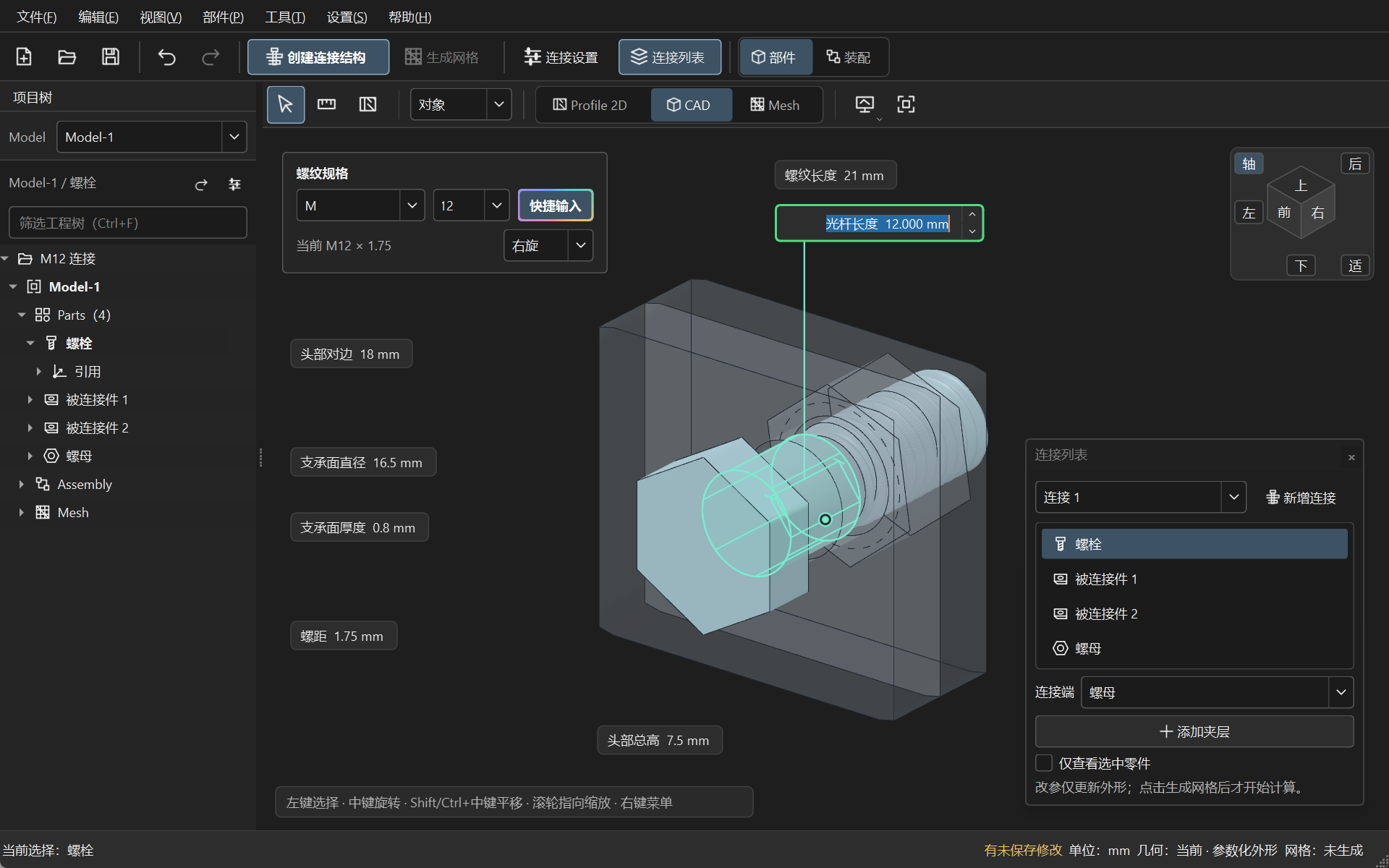
Adjust dimensions, inspect the assembly and generate a mesh.
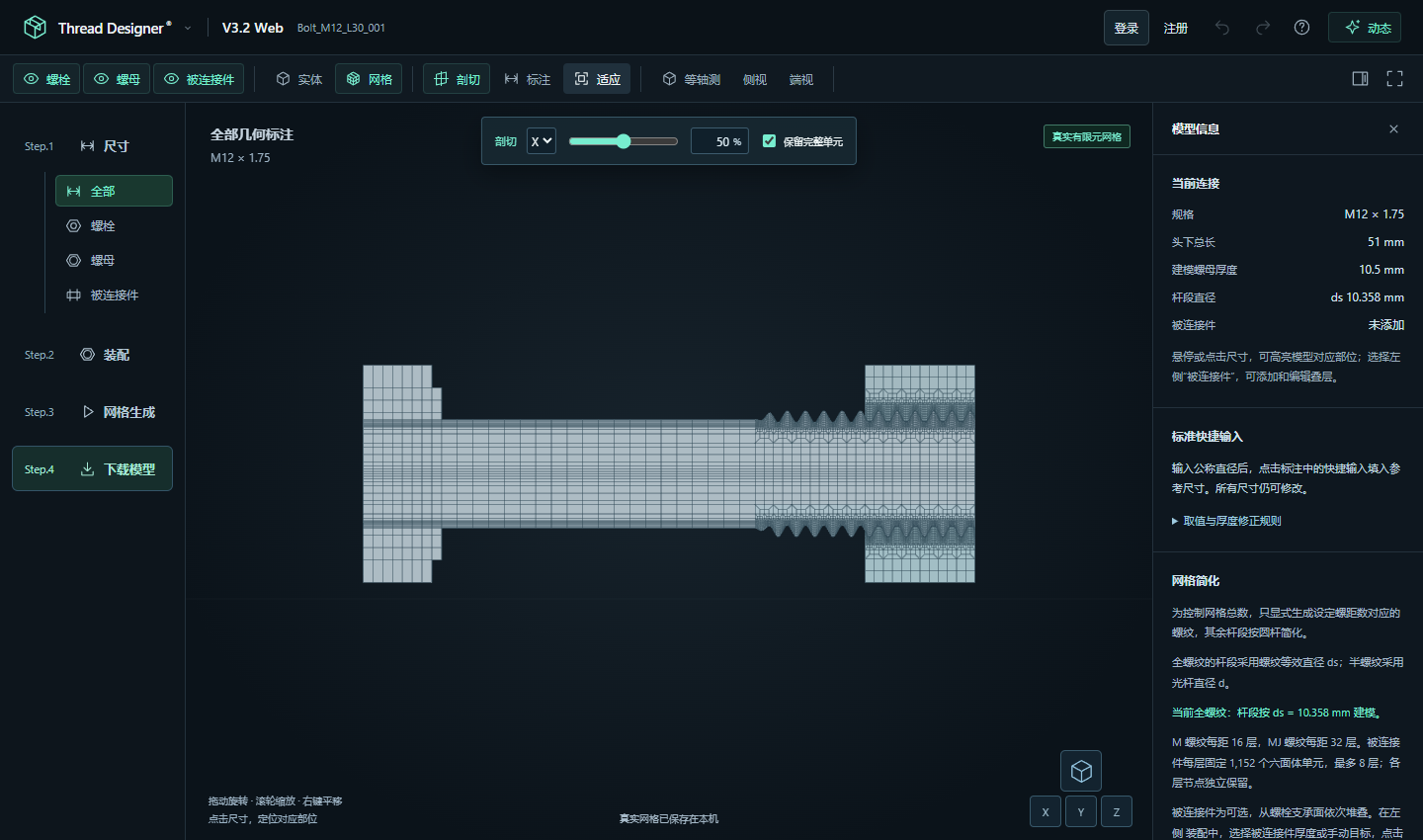
Download your model directly from the browser.
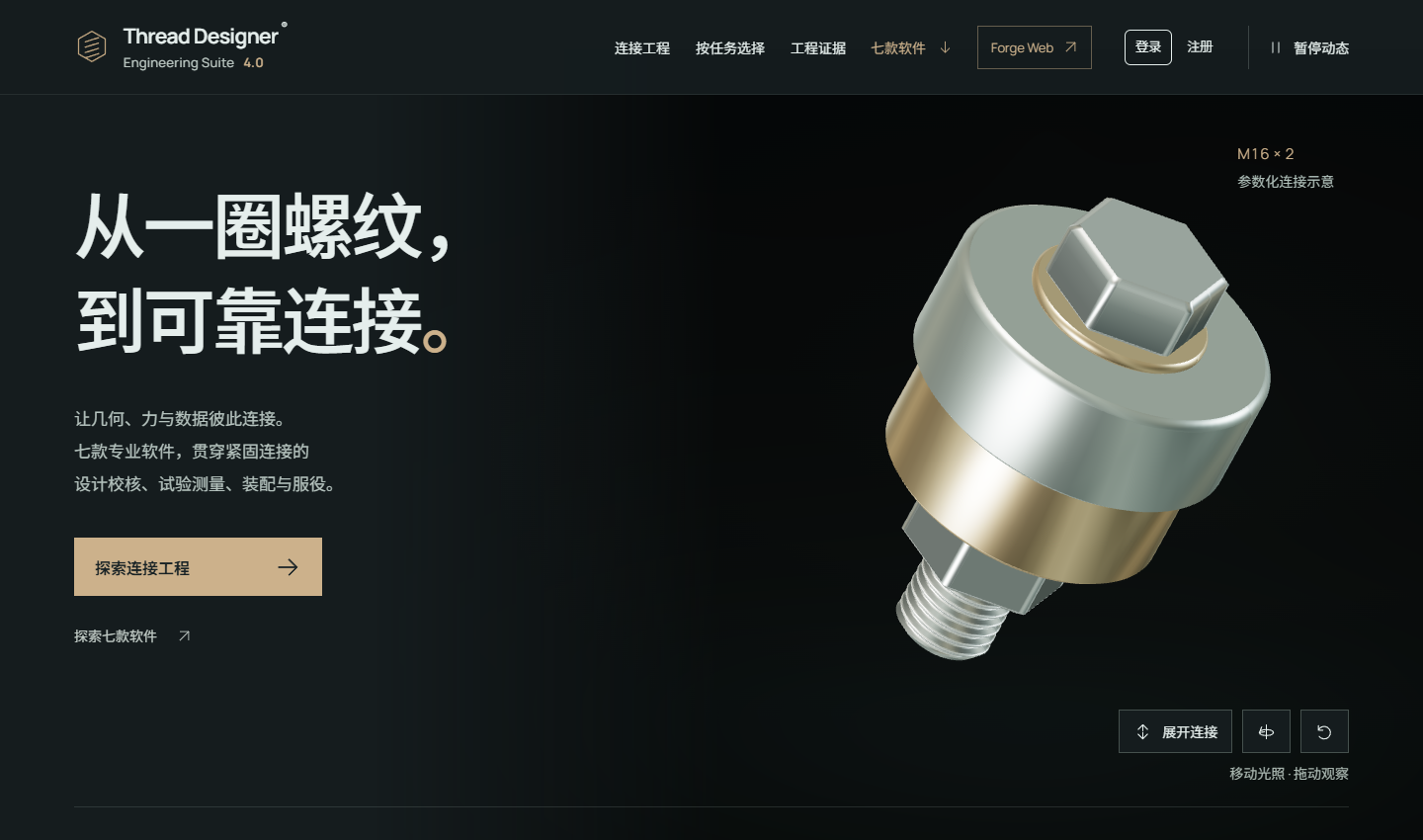
Explore how seven engineering products work together.
Preview Downloads pending
Desktop modeling, a browser workbench,
and a preview of the joint engineering suite.
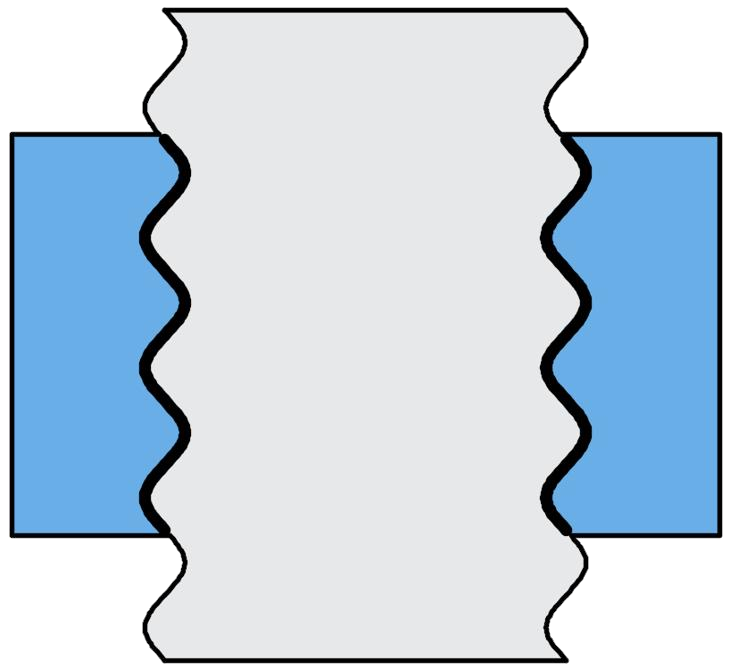
Define thread profiles, dimensions and mesh settings, then generate and export an INP model.

Use a direct 3D workflow for familiar threaded joint modeling tasks.

Build a joint model from a set of dimensions in your browser.

A suite of engineering tools for fastened joints.
Follow one joint through 3.2 Web, from geometry parameters
to an exportable mesh.
Set the thread size, pitch, shank dimensions and head dimensions.
Check the bolt, nut and clamped members together to see how each layer fits.
Switch between solid geometry and the hexahedral mesh. Use a section cut to inspect internal elements.
Export the INP model and mesh quality report, then set up the load case in your solver.
Open the Web workbench to create your first threaded joint.